3 Step Guide On:

3 Step Guide On:

How to connect your smart wearable device to the our web application.

How to connect your smart wearable device to the our web application.

Watch this video or follow the steps below:

Watch this video or follow the steps below:

Step 1 - Login & View Devices

• Login into our web application at my.sperityhealth.com.

• At the top of the home screen, find the Connect a Smart Wearable card.
• Press the green “View Devices” button.

Example:

Connect a Smart Wearable

Easily track vital wellness metrics that support your overall wellbeing.

Easily track vital wellness metrics that support your overall wellbeing.

View Devices

Step 2 - Connect a Device

• Find the wearable that you want to connect.

• Press the green "Connect" button.

Example:

Whoop

Not Connected

Connect
Oura Ring

Not Connected

Connect
Fitbit

Not Connected

Connect

Garmin

Not Connected

Connect
Polar

Not Connected

Connect
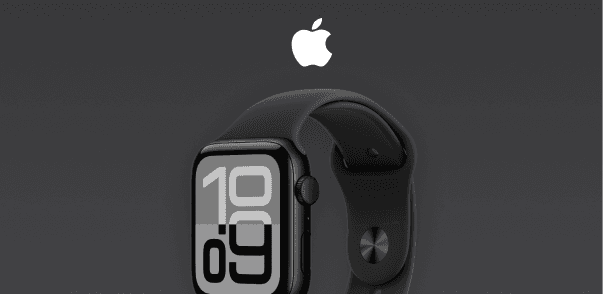
Apple Watch

Not Supported

Currently Not Supported

Step 3 - Authorize Wearable Data

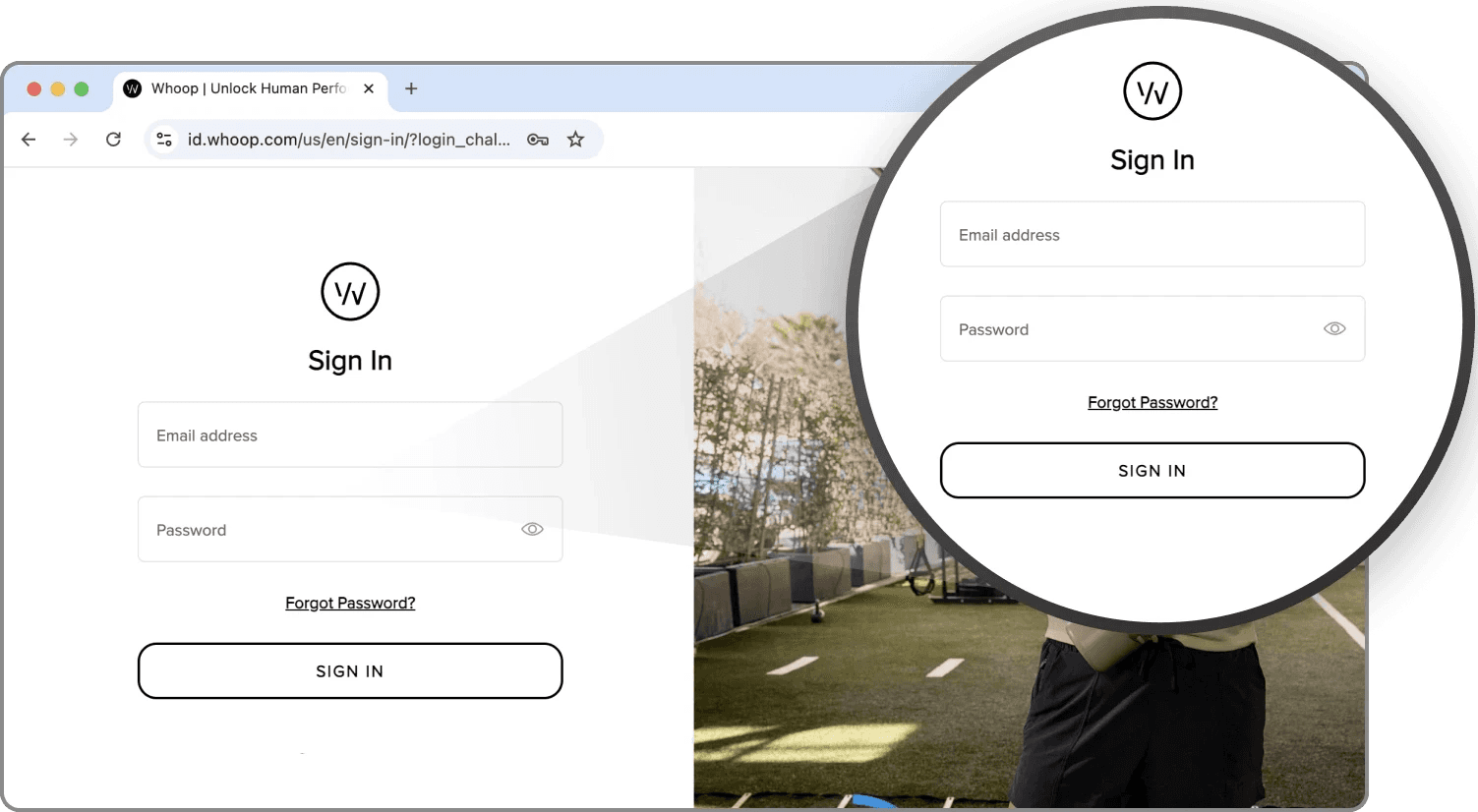
• You’ll be redirected to your wearable provider’s site.

• Log into your wearable provider's account.

WHOOP example:

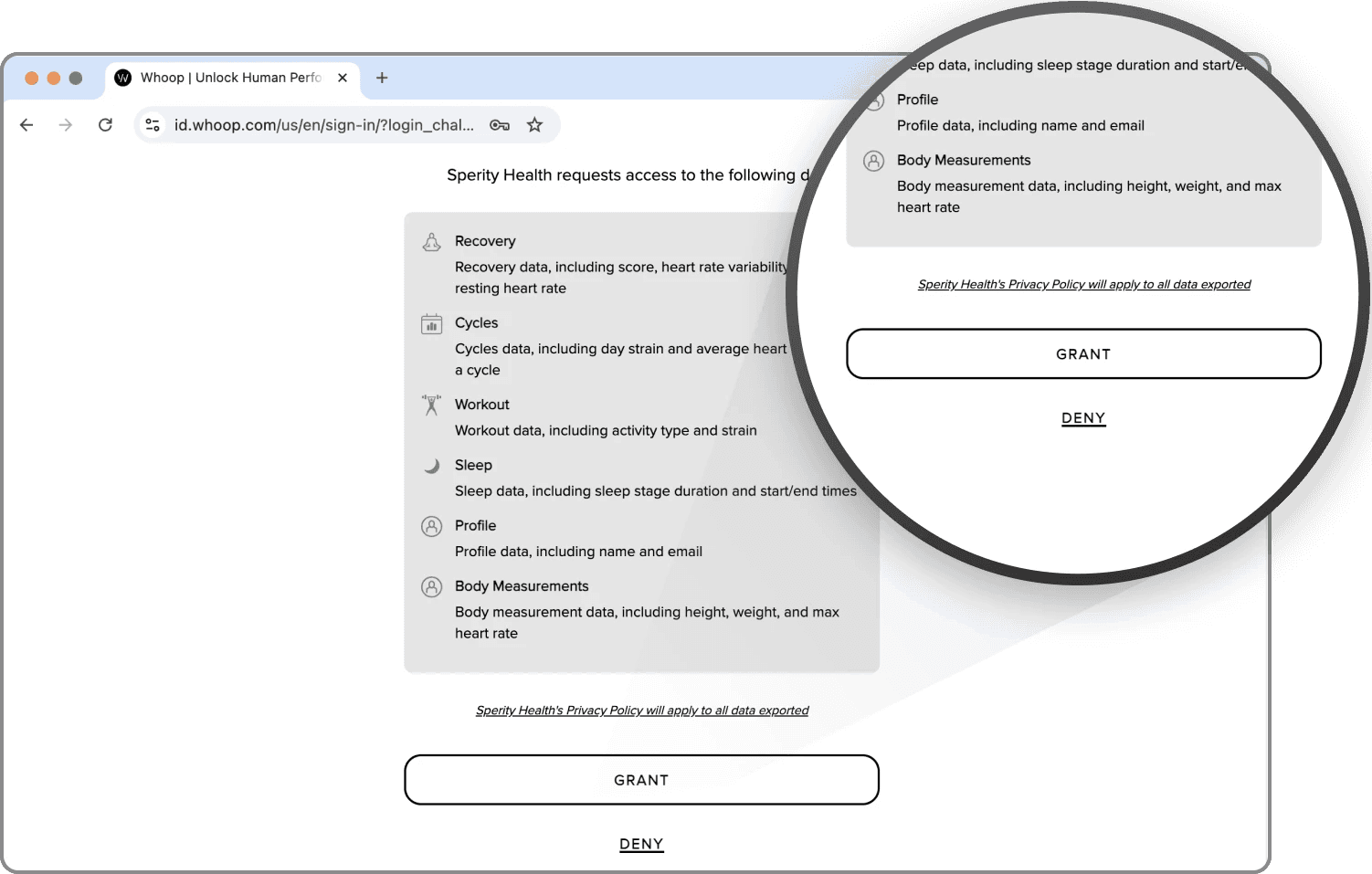
Confirm access to provider’s wearable data.

WHOOP example: (press the “Grant” button)

What Happens Next

• You’ll automatically return to our app.

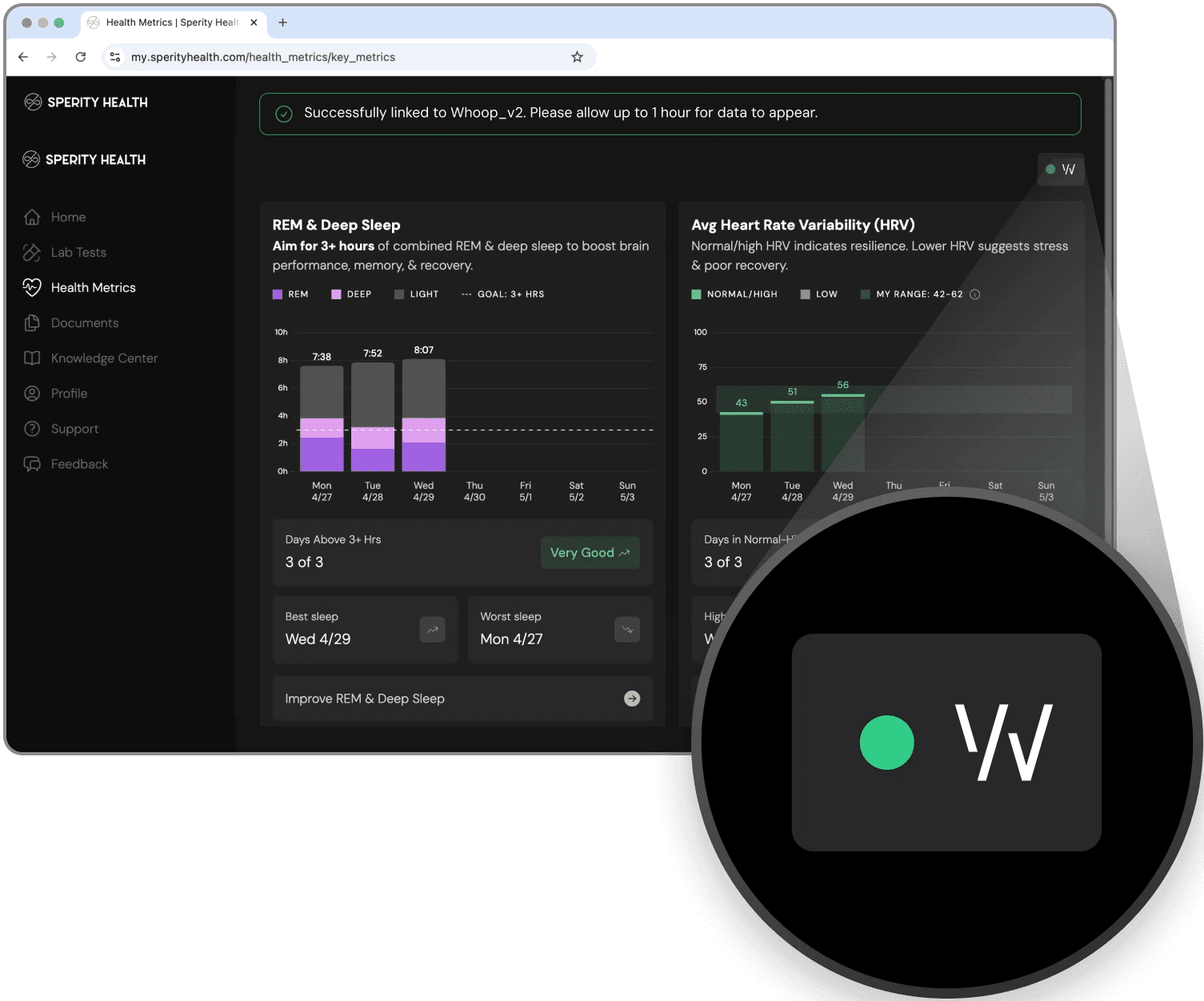
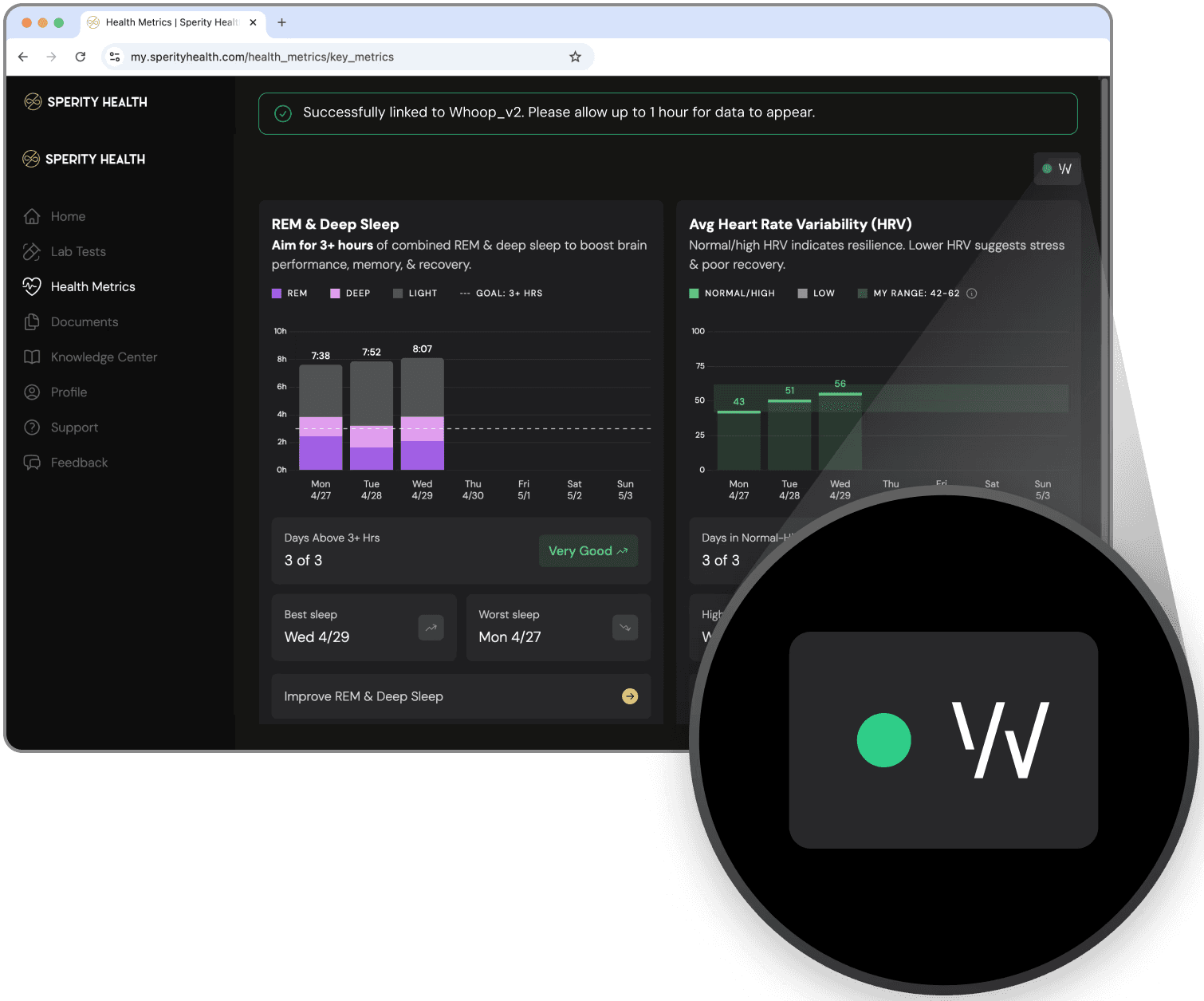
• You’ll see a “Successfully linked” message.

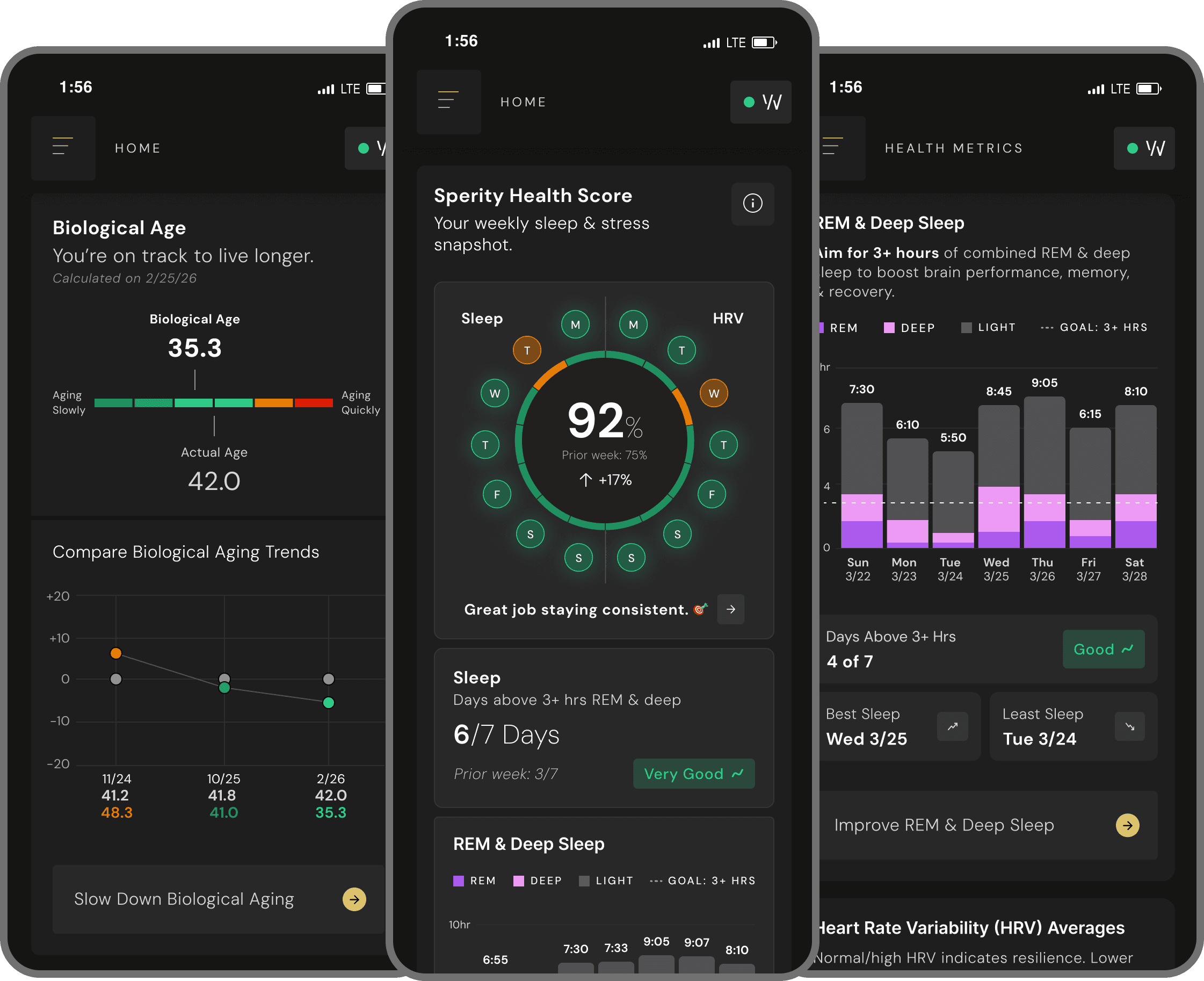
• Your device icon will show a green status indicator.

• Data may appear instantly or take up to 1 hour to sync
(first-time connection only).

• You only need to connect your device once.

• You’ll automatically return to our app

• You’ll see a “Successfully linked” message

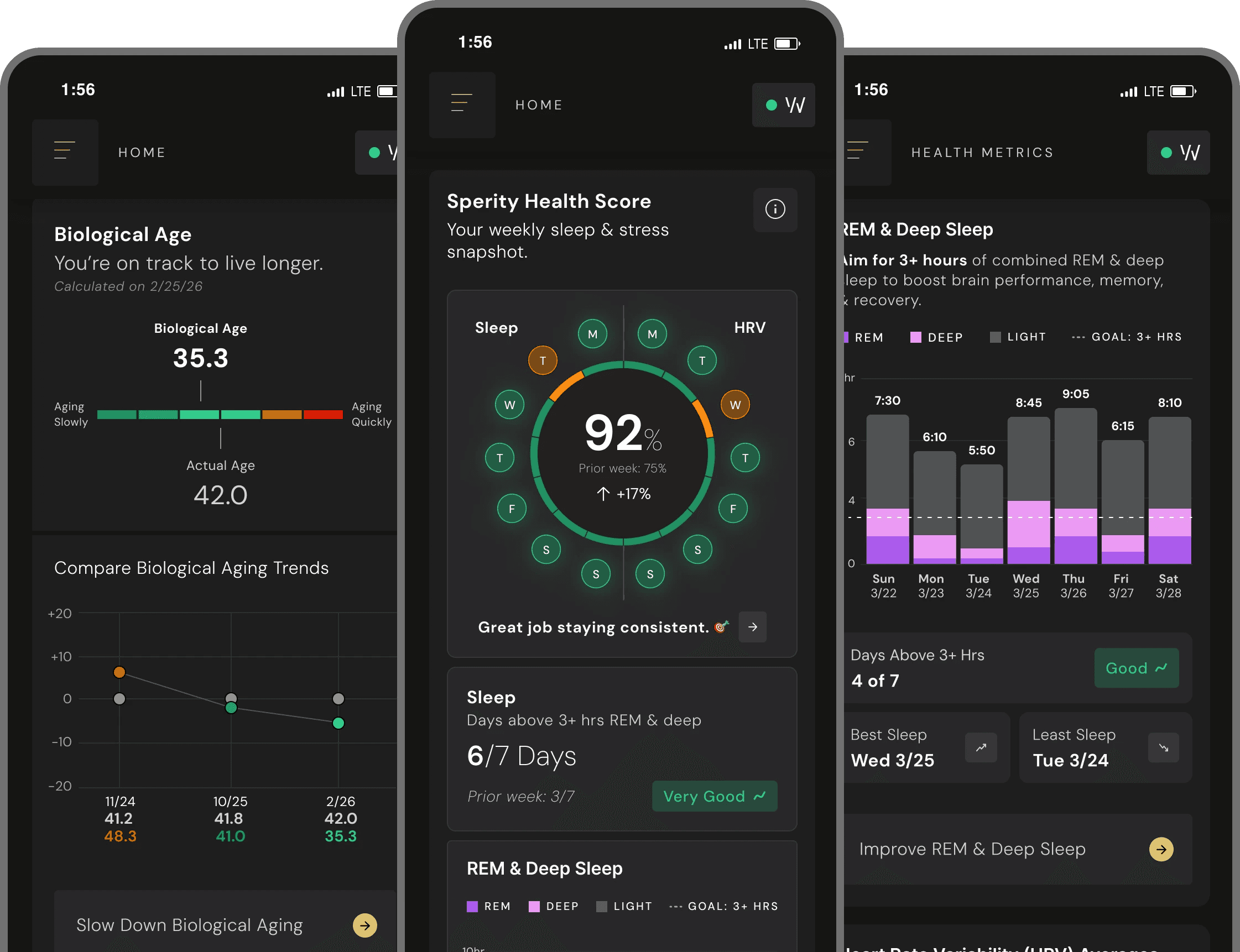
• Your device icon will show a green status indicator

• Data may appear instantly or take up to
1 hour to sync (first-time connection only)

• You only need to connect your device once